WhatsApp Automated Message: Auto Replies for Your Store
Set up a WhatsApp automated message: greeting (first message, or after 14 days of silence), away message, 50 quick replies, then API automations.
 Nicolas ProvostMay 19, 2026 · 16 min read

Summarize this article with an AI
 ChatGPT
 Claude
Table of contents (16)
Key takeaways
- In the WhatsApp Business app, automatic replies live in the Tools tab: Greeting message and Away message. Quick replies, 50 at most, are saved answers you still send yourself.
- The greeting message goes out on a customer's first message or after 14 days of inactivity, the away message on the schedule you choose, and both need the phone to be online.
- Regular WhatsApp has no auto reply setting, and WhatsApp's guidelines say not to auto-message from it: accounts that do can be banned.
- Messages triggered by store events, such as an order confirmation or a cart reminder, go through the WhatsApp Business Platform with templates approved by Meta, customer opt-in and per-message billing.
To send an automated message on WhatsApp, install the WhatsApp Business app, open the Tools tab and turn on Greeting message (an automatic reply to a customer's first message) or Away message (an automatic reply when you are not available). Messages triggered by your store, such as an order confirmation or a cart reminder, need the WhatsApp Business Platform (the API) and a template approved by Meta.
This guide follows the steps and limits WhatsApp publishes in its Help Center, then the rules of the WhatsApp Business Platform that online stores use for messages tied to orders, with sample replies you can adapt. Every page cited was read on November 4, 2026, apart from Meta's rates, taken from our WhatsApp Business pricing guide.
What automated messages can you send on WhatsApp?
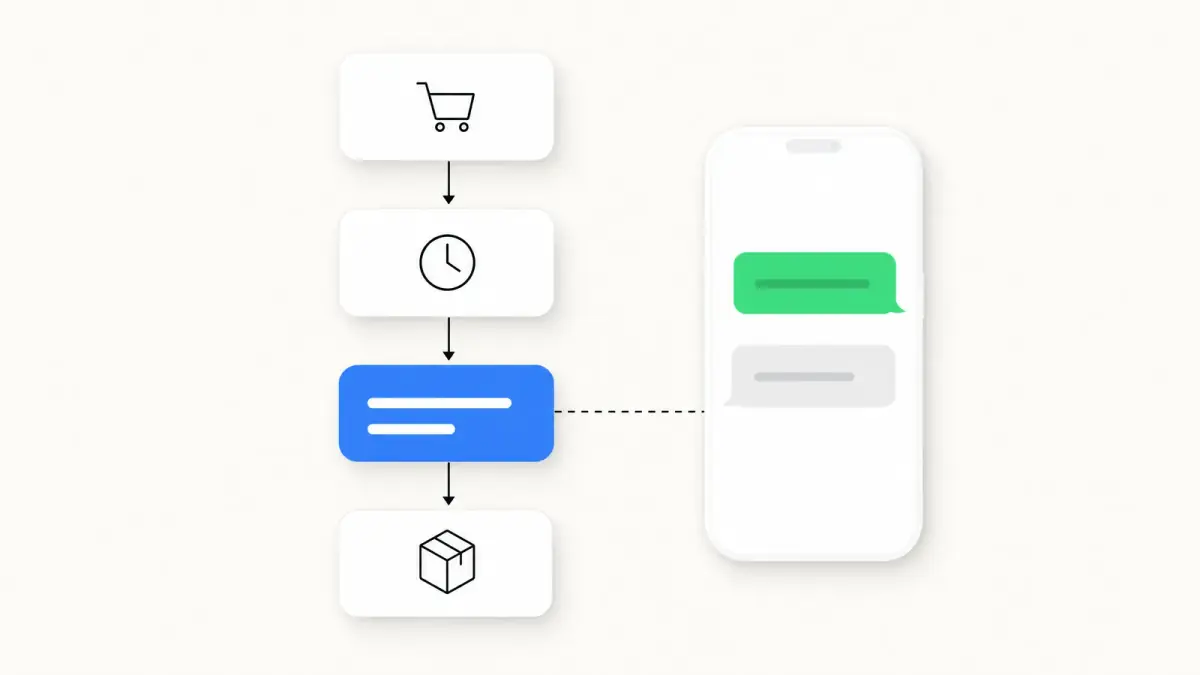
The Tools tab of the WhatsApp Business app holds the three settings covered first in this guide (greeting message, away message, quick replies), plus a Meta AI agent in some countries. The WhatsApp Business Platform works differently: software sends the messages, on triggers you define.
| Tool | Where it lives | What triggers it | Limit to know |
|---|---|---|---|
| Greeting message | WhatsApp Business app | A customer's first message, or a message after 14 days of inactivity in the chat | The phone must have an active internet connection |
| Away message | WhatsApp Business app | A message received during the schedule you chose | The business hours option requires hours in your business profile |
| Quick replies | WhatsApp Business app | You, by typing "/" in a chat: sending stays manual | 50 stored quick replies at most |
| AI agent (Meta Business Agent) | WhatsApp Business app, in limited countries for select businesses | New chats, depending on your setting | Greeting messages are disabled when the agent is connected |
| Message templates | WhatsApp Business Platform (API) | An event in the connected software: order, abandoned cart, campaign | Template approved by Meta, customer opt-in, per-message billing |
Sources: WhatsApp Help Center pages on greeting messages, away messages, quick replies and Meta Business Agent, and the WhatsApp Business Messaging Policy, as of November 4, 2026.
The app also has paid marketing messages, called business broadcasts in some countries. You build each one, pick the audience, then send it or schedule it; Meta reviews it first and bills each message delivered within five days (Help Center). It is a scheduled send rather than an automatic reply, covered in our guide on how to schedule a WhatsApp message.
How do you set up a greeting message on WhatsApp Business?
A greeting message is a text you write once and the app sends on its own in two cases: when a customer messages you for the first time, and when they message you after 14 days of inactivity in their chat with you (WhatsApp Help Center, as of November 4, 2026).
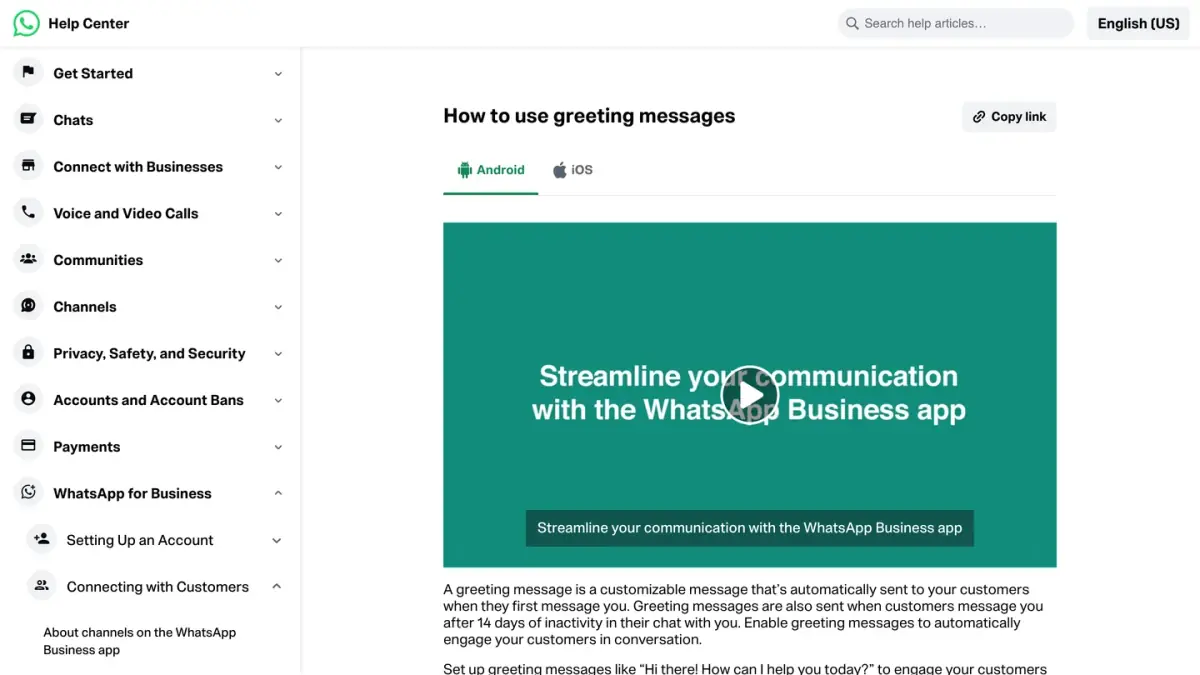
Greeting message: steps on Android
- From the Tools tab, tap Greeting message.
- Turn on Send greeting message.
- Tap Greeting message, edit the text, then tap OK.
- Tap Recipients and choose who receives the message (see the table below).
- Tap Save.
Greeting message: steps on iPhone
- From the Tools tab, tap Greeting message.
- Turn on Send greeting message.
- Under Message, tap the text to edit it, then tap Save.
- Tap Recipients and choose who receives the message.
| Who receives the greeting message | Label on Android | Label on iPhone |
|---|---|---|
| Everyone who messages you | Everyone | Everyone |
| People who are not in your address book | Everyone not in address book | Exclude my contacts |
| Everyone, apart from the contacts you select | Everyone except… | Everyone except… |
| Only the contacts you select | Only send to… | Only send to… |
Source: WhatsApp Help Center, "How to use greeting messages", Android and iPhone versions, as of November 4, 2026.
Limits to plan for:
- No repeat within 14 days. A customer who messaged you within the last 14 days does not get the greeting again.
- A phone that is online. The device must have an active internet connection for the greeting to be sent.
- One text. The Help Center describes a single message field, with no automatic first name and no button.
- Not alongside Meta's AI agent. Greeting messages are disabled automatically when Meta Business Agent is connected.
For wording sorted by industry and situation, see our WhatsApp greeting message examples.
How do you set up an away message on WhatsApp Business?
When away messages are on, people who message you automatically receive a text telling them you are busy or away. You choose when it is sent and who receives it.
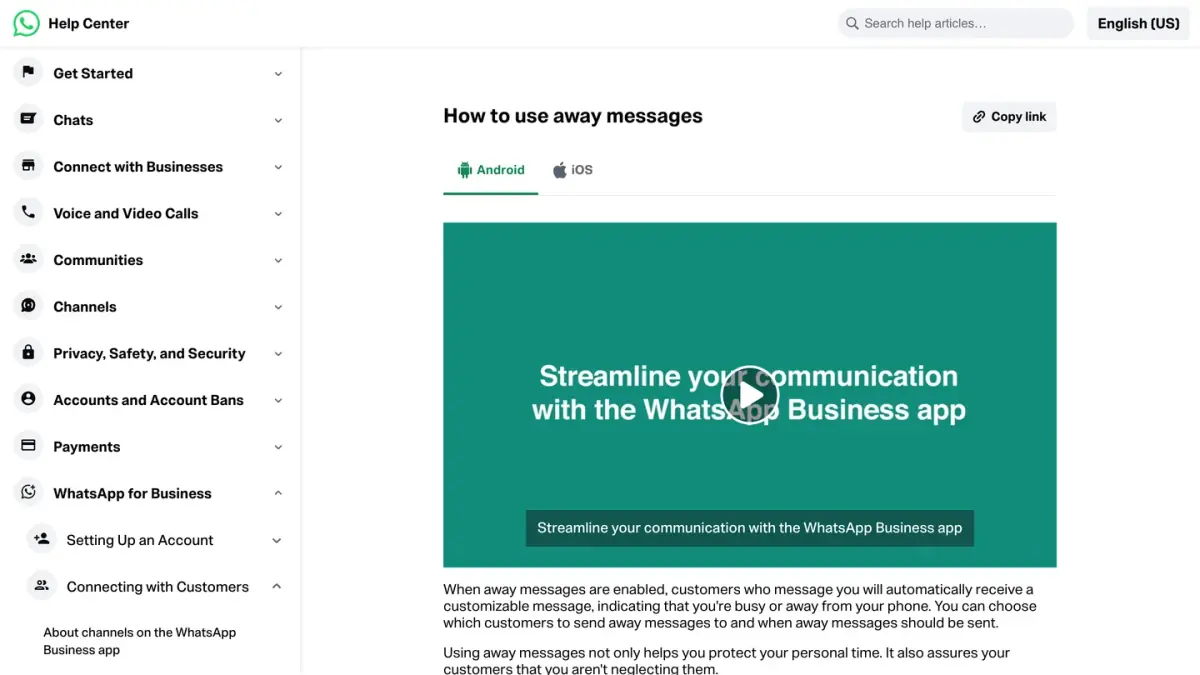
Away message: steps on Android
- From the Tools tab, tap Away message.
- Turn on Send away message.
- Under Away message, tap the text to edit it, then tap OK.
- Tap Schedule and choose when the message is sent (see the table below).
- Tap Recipients and choose who receives the message.
- Tap Save.
Away message: steps on iPhone
- From the Tools tab, tap Away message.
- Turn on Send away message.
- Under Message, tap the text to edit it, then tap Save.
- Tap Schedule and choose when the message is sent.
- Tap Recipients and choose who receives the message.
| Schedule option | When the message is sent |
|---|---|
| Always send | At all times |
| Custom schedule | Only during the period you specify |
| Outside of business hours | Only outside of your business hours |
| Who receives the away message | Label on Android and iPhone |
|---|---|
| Anyone who messages you while the away message is on | Everyone |
| Only people who are not in your address book | Everyone not in address book |
| Everyone, apart from the contacts you select | Everyone except… |
| Only the contacts you select | Only send to… |
Source: WhatsApp Help Center, "How to use away messages", Android and iPhone versions, as of November 4, 2026.
Outside of business hours is only available if you have set business hours in your business profile: in the Tools tab, tap Profile, then the Business hours field (Help Center page on the business profile). As with the greeting message, the phone must have an active internet connection. Our WhatsApp away message templates cover weekends, holidays and peak periods.
How do you create quick replies on WhatsApp Business?
Quick replies are not sent on their own: they are saved messages that you call up with a shortcut, so you do not retype the same answer. They can include images and videos, except on WhatsApp Web and Desktop, where media files are not supported in quick replies.
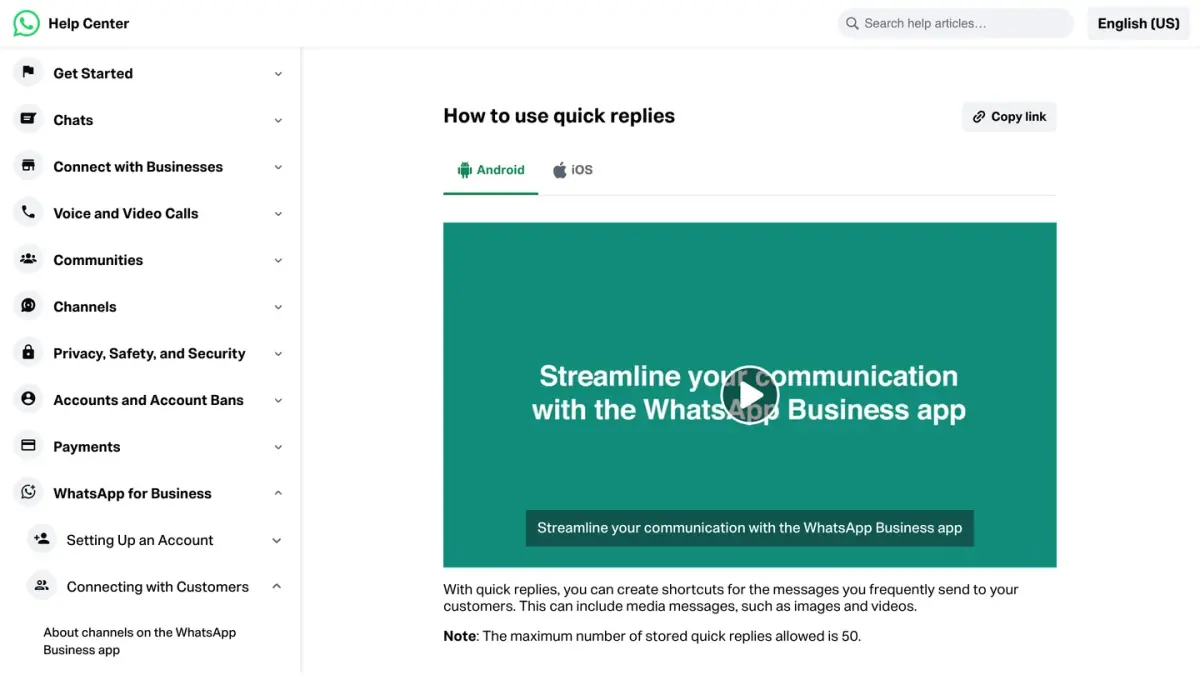
- From the Tools tab, tap Quick replies.
- Tap the add icon.
- Tap Message and write the text.
- Tap Shortcut and set the keyboard shortcut.
- Tap Save.
To send one, open a chat and type "/" in the text field: the list of your quick replies appears, including the default replies the app creates from your business profile (your hours or your address, for example). Select one, edit it if needed, then send.
| Limit | Value |
|---|---|
| Stored quick replies | 50 at most |
| Shortcut | 25 characters at most, no spaces, starting with a forward slash "/" |
| Keywords per quick reply | Three at most |
| Length of a keyword | 15 characters at most, letters and numbers only |
| Deleted or lost quick reply | Cannot be recovered: keep a copy outside the app |
Sources: WhatsApp Help Center, "How to use quick replies" and "Can't save or recover quick replies", as of November 4, 2026.
WhatsApp auto reply message samples for a store
Short, specific texts work best: say who answers, when, and what the customer should send so the first human reply can solve the question. Adapt these to your store.
Greeting message (first contact):
Hi, thanks for messaging [Store]. Tell us in one line what you need (an order, a product, a return) and we will reply Monday to Friday, 9 am to 6 pm.
Away message (outside business hours):
Thanks for your message. Our team is offline right now and back at 9 am (Eastern Time). If it is about an order, send your order number and we will start with it.
Away message (holiday or peak period):
We are closed for the holiday until Monday. Orders placed now still ship in turn. Leave your question and order number here and we will answer first thing.
Quick reply /tracking:
You can follow your parcel from the tracking link in your shipping confirmation. Not received it? Reply with your order number and the email used at checkout.
Quick reply /return:
Want to send an item back? Reply with your order number and the item, and we will send you the return steps.
What about AI auto replies inside the app?
In limited countries and for select businesses, the Tools tab shows an AI agent entry. This is Meta Business Agent, an AI service from Meta that answers customers based on what you teach it: past chats from the last six months, your catalog, documents or photos, or your website. Under AI replies, you choose where it answers: All new 1-1 chats, 1-1 chats except with contacts, 1-1 chats from ads, or Paused for new chats but learning. If you do not see the entry, the feature is not available for your business yet; you can join a waitlist, which Meta says guarantees neither access nor a date (Help Center, "How to set up Meta Business Agent", as of November 4, 2026).
Our Meta Business Agent guide explains how it works and how it is billed.
Why is my WhatsApp automated message not sending?
WhatsApp lists what to check when a greeting message is on but is not being sent (Help Center page on greeting messages, as of November 4, 2026):
- Meta Business Agent. If it is connected, you need to delete it to use greeting messages again.
- Your recipient settings. With Only send to… or Everyone except…, some customers do not receive the greeting.
- The 14-day rule. The contact may have messaged you within the last 14 days.
- The option itself. Go to Tools > Greeting message, turn off Send greeting message, wait a moment, then turn it back on.
- The app version. Install the latest version of WhatsApp Business.
- The device. A restart can resolve a temporary delivery issue.
For an away message, check the option chosen under Schedule first (the business hours option follows the hours in your profile), then the phone's internet connection.
Can you set an automatic reply on regular WhatsApp?
Not with the tools above: WhatsApp presents them as features of WhatsApp Business, a free app separate from WhatsApp Messenger. WhatsApp states that if you are not a business, there is no need to download it (Help Center, "About WhatsApp Business").
Two routes are best left alone:
- Tools that send messages for you from a personal account. WhatsApp's responsible use guidelines say: "Don't bulk message, auto-message, or auto-dial using WhatsApp", and warn that WhatsApp detects and bans accounts that send unwanted automated messages. Its page on unauthorized automated or bulk messaging adds that WhatsApp also takes legal action against this kind of abuse.
- Modified versions of WhatsApp. WhatsApp files them under unofficial apps, with GB WhatsApp and FM WhatsApp among its examples, says that using them violates its Terms of Service, and states that the account might be temporarily or permanently banned (Help Center, "About unofficial apps").
What you can do is move your number to WhatsApp Business. The app identifies the number you use in WhatsApp Messenger, WhatsApp recommends creating a backup first, and it notes that WhatsApp contacts are not yet supported in the WhatsApp Business app, so save them to the phone's address book before you move (Help Center page on moving your account). You cannot use the same phone number with both apps at the same time, but you can move between them.
How do online stores automate WhatsApp messages with the API?
The WhatsApp Business app is built for small businesses working from a single device. For high volumes of conversations, WhatsApp points businesses to the WhatsApp Business Platform, reached directly or through a Business Solution Provider (Help Center, "About WhatsApp Business products"). There is no Tools tab there: software connected to the platform sends the messages, within Meta's rules.
| WhatsApp Business app | WhatsApp Business Platform (API) | |
|---|---|---|
| Built for | Small businesses, from one device | Higher volumes, through software |
| Automatic messages | Greeting, away message, Meta Business Agent where available | Any trigger in the connected software: store events, bots, campaigns |
| Who writes first | The customer; you reply | Also the business, with an approved template and opt-in |
| Cost from Meta | Free to download and use (marketing messages are paid) | Per delivered message, plus the software's plan |
The rules that apply on the platform:
- To reply: the 24-hour window. The WhatsApp Business Messaging Policy (last updated September 23, 2026) lets a business reply without a template within the 24-hour customer service window, "which opens and resets with each user message". Automation is allowed in that window, provided there are "prompt, clear, and direct escalation paths", such as an in-chat transfer to a human agent, a phone number, an email address or a support form.
- To write first: approved templates. The same policy states: "You may only initiate conversations using an approved Message Template." Meta sorts templates into categories (marketing, utility, authentication), and the category sets the price (Meta's pricing documentation, as summarized in our pricing guide).
- Opt-in. Meta's opt-in documentation requires opt-in before messaging people on WhatsApp. It can be general rather than specific to WhatsApp, as long as local laws are respected, and it must clearly state the business's name.
- Billing. Meta charges per delivered message, by category and by the recipient's country. Since October 1, 2026, replies inside the 24-hour window are billed too, at the utility rate, after 1,000 free service messages per business phone number each month. On the rate card effective October 1, 2026, a utility message to a UK number costs $0.0220 and a marketing message $0.0635 (figures and sources in our WhatsApp Business pricing guide).
Messages triggered by store events
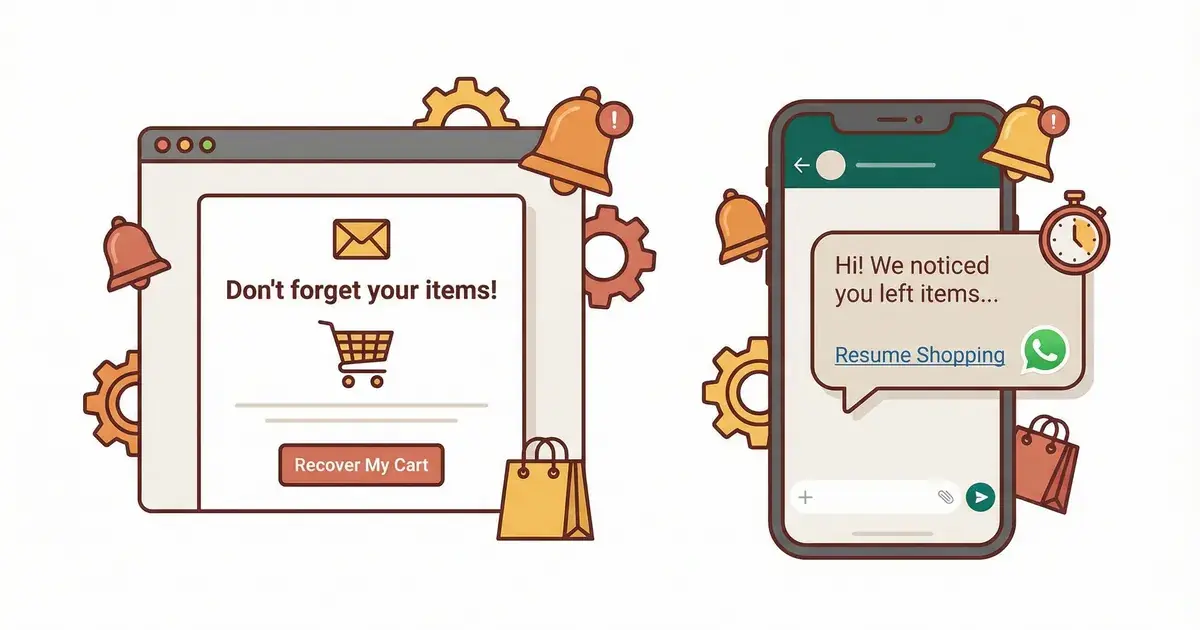
On the platform, the trigger can be an event in your store. Shopify, for example, lets apps subscribe to webhook topics such as orders/create, and use them "as a trigger to perform an additional action after that event has occurred" (Shopify's documentation on webhooks). The app then sends the template planned for that event.
| Store event | Automated message | Meta category |
|---|---|---|
| Order placed | Order confirmation | Utility |
| Order shipped | Shipping update | Utility |
| Checkout abandoned | Cart reminder | Marketing |
| The customer replies to one of these messages | Free-form reply for 24 hours, written by a person or a bot | Service |
Categories as described in Meta's pricing documentation and our WhatsApp Business pricing guide, as of November 4, 2026.
For US customers, the category matters: Meta has not delivered marketing templates to US phone numbers since April 1, 2025, so order and shipping updates still reach +1 numbers while cart reminders do not (WhatsApp marketing in the USA). Ready-to-adapt texts for these events are in our WhatsApp Business templates and abandoned cart templates.
The platform's equivalent of a greeting message
Meta offers two conversational components that you enable on a business phone number: ice breakers, tappable text strings that appear the first time a user chats with you, and commands, which the user sees by typing "/". A number takes 4 ice breakers at most, of 80 characters or fewer each, and 30 commands of 32 characters or fewer, without emojis (Meta's documentation on conversational components, as of November 4, 2026). Ice breakers are dismissed when a customer arrives through a wa.me link with pre-filled text.
To choose between the app and the platform, read our WhatsApp Business app vs API guide. If you want the replies themselves automated, see how a WhatsApp bot works, and for software that runs these flows, our list of WhatsApp automation tools.
How does Kanal automate WhatsApp messages for a Shopify store?
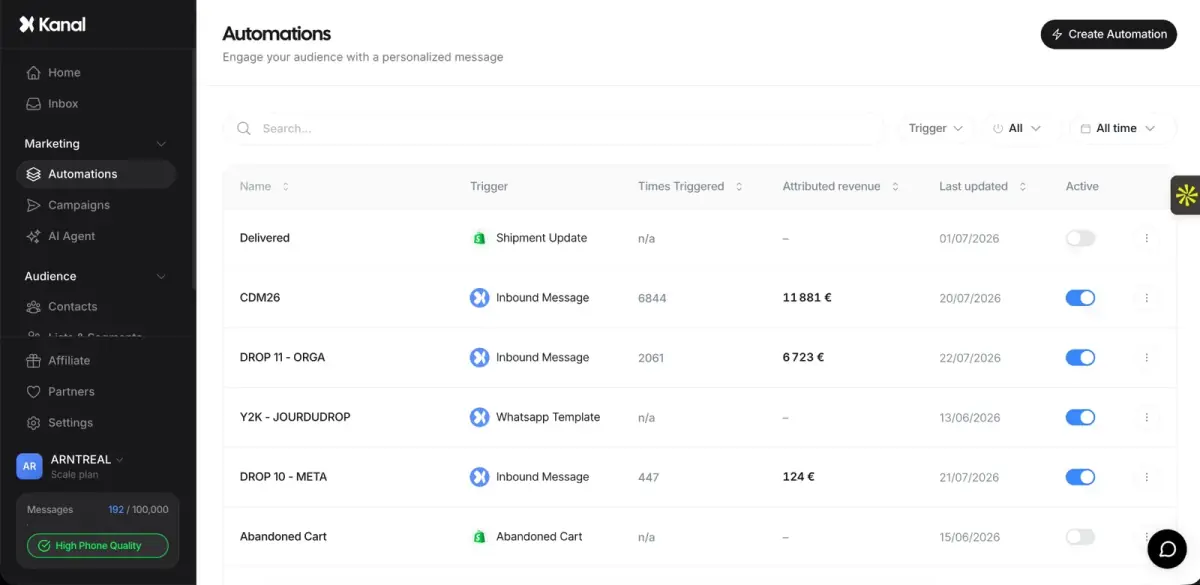
Kanal is a WhatsApp marketing and sales app for e-commerce stores, installed from the Shopify App Store, where it is rated 5.0. Its automations send the message planned for each store event: abandoned cart recovery, order notifications, back in stock alerts, review collection and post-purchase offers, to segments you define, with revenue tracked per message. A pop-up and a chat widget that open WhatsApp collect opt-ins.
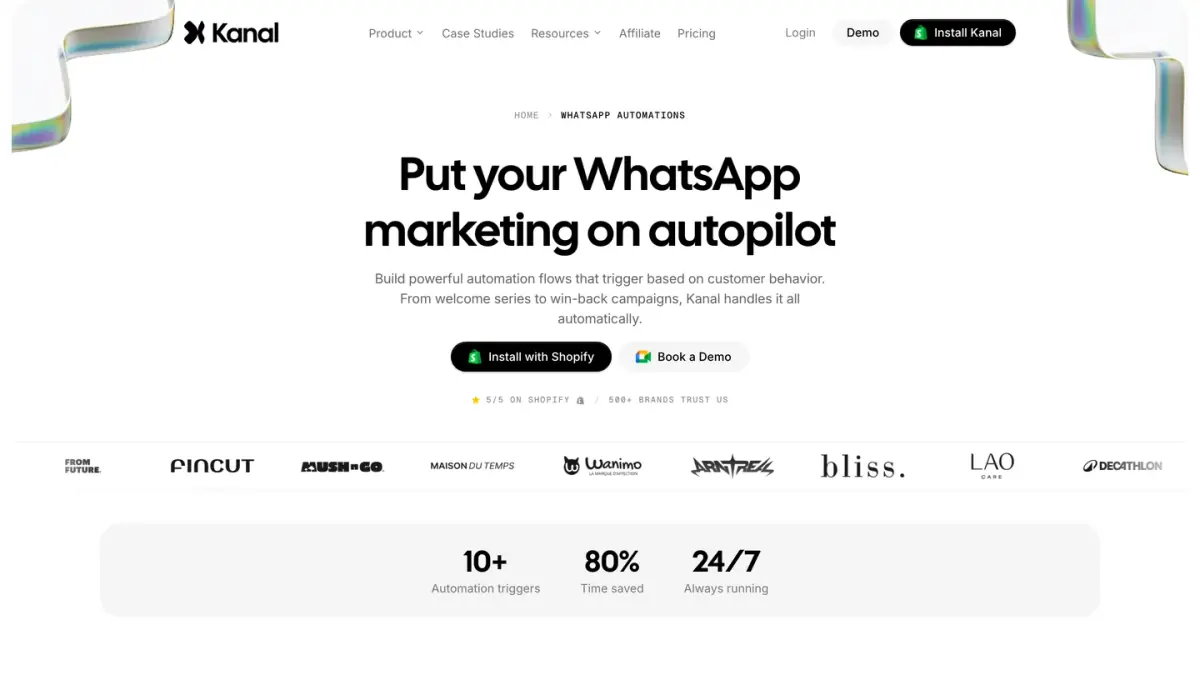
When a customer replies, the message lands in a shared team inbox, where your team answers, or the AI agent on the Scale and Business plans. RCS and SMS are included from the Scale plan, a route for customers Meta's US marketing pause keeps out of reach on WhatsApp. Plans are on the Kanal pricing page: Pro at €89 a month, Scale at €149 and Business at €350, with Meta billing WhatsApp messages on top. To see these automations on your own store, book a demo.
See Kanal on your own store
- Your campaigns and cart reminders on WhatsApp, starting from your own store
- Post-purchase offers, back-in-stock alerts, then the AI agent that advises your customers
- You leave with the plan that fits and its price
From €89/month
- brands
- 500+
- to set up
- 5 min
- open rate on WhatsApp
- +90%
Nicolas helps e-commerce brands grow revenue with WhatsApp marketing. With deep expertise in Shopify ecosystems and conversational commerce, he shares proven strategies for abandoned cart recovery, broadcast campaigns, and AI-powered customer engagement.